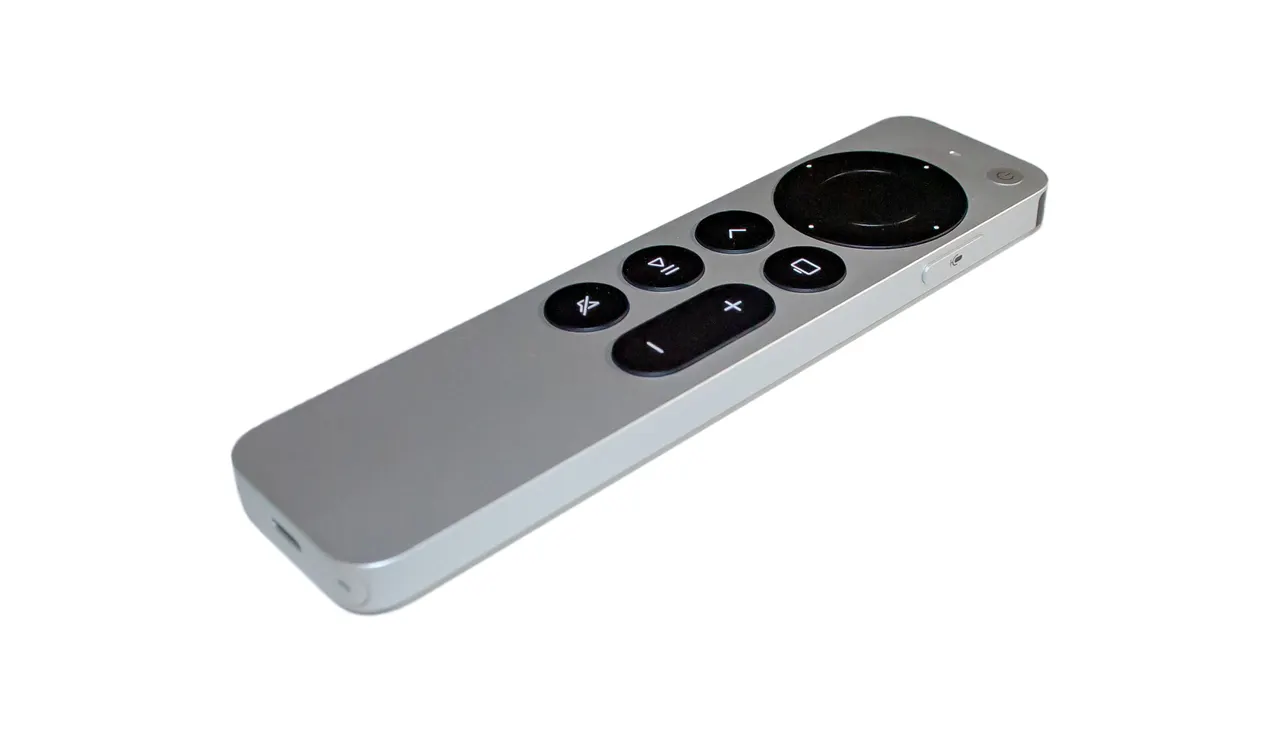
Losing an Apple TV remote is practically a rite of passage. Small, slick, and easily buried under couch cushions, the Siri Remote seems designed to vanish at the worst possible moment. Fortunately, if you own an iPhone, you do not need to tear your living room apart or pay for a replacement right away. Apple built a hidden tracking feature directly into iOS that helps you pinpoint the exact location of your missing remote in seconds.
Tip 1: Open the Apple TV Remote in Your iPhone Control Center
The fastest way to start tracking your lost Siri Remote is by using your iPhone's built-in remote interface. You do not need to install a third-party app to get started.
- Swipe down from the top-right corner of your iPhone screen (or swipe up from the bottom on older models) to open the Control Center.
- Look for the Remote icon (shaped like a small Apple TV remote). Tap it to launch the app.
- If you do not see the icon, go to Settings > Control Center on your iPhone and tap the green plus button next to Apple TV Remote to add it to your active controls. Menu paths may vary slightly depending on your iOS version.
Tip 2: Use the Built-In Search Feature to Track the Signal
Once the remote control interface is open on your iPhone, you can activate the proximity search feature to track down your physical Siri Remote.
- Tap the device drop-down menu at the top of the Apple TV Remote screen on your iPhone.
- Look for the Find option located next to the listing for your lost remote control.
- Follow the on-screen prompts. Your iPhone will act like a signal detector, displaying an expanding circle that grows larger and changes color as you physically move closer to where the remote is hiding.
- Once you are right on top of it, the screen will give you a clear visual indicator that the Siri Remote is within arm's reach.
Tip 3: Use Your iPhone as a Temporary Remote Control
If you are in a rush and do not have time to hunt down the physical device, remember that the iPhone interface is not just a tracker—it is a full replacement remote. You can swipe on your phone's screen to navigate menus, select shows, and pause playback without needing the physical Siri Remote in your hand at all.
Limitations and Who Benefits Most
While this feature is a massive convenience, it does have a key limitation: unlike tracking an AirTag or an iPhone through Find My, the Siri Remote does not contain a built-in speaker. That means it cannot emit an audible chime or beep to help you locate it under a heavy blanket or inside a stuffed drawer. You will have to rely entirely on the visual proximity cues on your iPhone screen.
This tracking trick benefits anyone who regularly misplaced their Apple TV remote, particularly households with kids, pet owners, or anyone with deep couch cushions where small electronics frequently disappear.
Sources: This report draws on coverage by Stuff, All About Cookies, Yahoo Tech, TechRadar. The wording is our own.