How to Audit Your Home Network for Legacy Hardware Security Risks
This step-by-step guide shows you how to identify outdated hardware on your local network and isolate potential vulnerabilities. Protect your entire smart office by locking down legacy connected devices before they compromise your setup.
T
Tech Desk
4 min read0 views
Holding onto older electronics may feel economical, but keeping obsolete gear connected puts your entire home network at risk. A single legacy device—whether an unpatched smart plug, an outdated security camera, or an old router—can serve as the entry point for unauthorized access, misuse, or network compromise. The immense popularity of smart office tutorials, including a viral video on starting and growing a smart home with 1.3 million views, demonstrates how eager people are to expand their connected setups. However, growing a network without auditing its foundations leaves your environment vulnerable to its weakest link.
Network security relies on access controls, policies, and processes designed to prevent unauthorized access and protect network-accessible resources. Follow these practical steps to identify, audit, and isolate your legacy hardware.
Watch: Ultimate Guide to Starting and Growing a Smart Home! — Smart Home Solver
Step 1: Map Every Connected Device and Find Its IP Address
You cannot secure devices you do not know exist. To audit your setup, create a complete inventory of every object embedded with sensors, processing power, or software connected to your local network.
Locate your router admin panel: Open a web browser on a connected computer and enter your gateway address (commonly 192.168.1.1 or 192.168.0.1, though exact paths vary by manufacturer). Log in to view your network map.
Check device network settings: If you need to find an IP address for network troubleshooting or remote access on individual computers, navigate to your system settings. On Windows, open Command Prompt and type ipconfig; on macOS, check System Settings > Network.
Identify hardware: Match every assigned IP address to a physical item in your house, from smart speakers and alarm clocks to streaming dongles and laptops.
Step 2: Inspect Security Settings and Disable Legacy Features
Once you have logged into your router's administrative dashboard, audit your operational settings. Many routers default to permissive configurations that expose your local traffic to unnecessary risks.
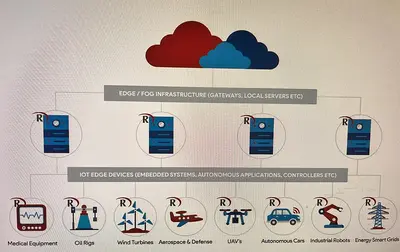
Internet of things (Image: Wikimedia Commons)
Review management protocols: Turn off remote management capabilities, UPnP (Universal Plug and Play), and outdated WPS authentication features unless strictly required.
Audit active services: Look through your router's advanced menu for legacy remote-access features or open ports that were enabled for older devices and forgotten years ago. Disable any port forwarding rules that are no longer actively monitored.
Update access credentials: Ensure your administrative password and Wi-Fi security keys are unique and strong. Simple names and standard passwords remain the easiest target for unauthorized network intrusion.
Step 3: Update Firmware or Retire EOL (End-of-Life) Hardware
Outdated hardware often stops receiving critical security patches, leaving unfixable vulnerabilities open on your local system. Network security relies on maintaining updated software across all endpoints.
Check support status: Visit the hardware manufacturer's support portal for every old hub, camera, or print server on your list. Verify whether the device is still receiving security firmware updates.
Apply available updates: Download and install the latest firmware directly through the device's native app or web interface.
Retire unmaintained gear: If a device manufacturer no longer issues patches for critical flaws, disconnect the unit. Continuing to use unpatched, end-of-life hardware for minor convenience exposes every other system on your network to risk.
Step 4: Segment Smart Home Devices onto an Isolated Network
Most Internet of Things (IoT) items only need to connect to a local network to exchange data; they rarely require open access to your primary computers or sensitive personal files.
Enable a Guest Network: Access your router's Wi-Fi settings and activate an isolated secondary or guest Wi-Fi network.
Migrate smart appliances: Connect smart lights, secondary sensors, and legacy gadgets exclusively to this guest band.
Restrict local communication: Ensure your guest network settings prohibit devices from communicating with one another or accessing your primary local domain, preventing a breached appliance from scanning your personal drives.
Honest Limitations and Caveats
A practical reality check: Network auditing requires regular upkeep and cannot fix inherently broken hardware software. Segmenting legacy smart devices on a guest network mitigates exposure, but it can break features that rely on direct local device-to-device communication (such as local media streaming or direct phone-to-app control). Furthermore, if your core Wi-Fi router itself is an outdated model that no longer receives manufacturer security updates, no amount of setting tweaks will fully secure your home office—replacing the router is the only permanent solution.
Home automation (Image: Wikimedia Commons)
Who Benefits Most
This audit process is essential for anyone running a home office, managing sensitive personal data on local drives, or operating a growing smart home setup. If your network contains a mix of modern computers alongside older connected gadgets, taking an hour to locate IP addresses, audit security settings, and isolate unpatched hardware ensures your modern work environment is not compromised by legacy tech.
Sources: This report draws on coverage by Engadget, Lifehacker, shattered.io, XDA, The New York Times, AIMultiple, Homeland Security Today, PC Guide. The wording is our own.