There is few things more frustrating than having a movie pause for a full minute so the screen can catch up with your router. For many households, the smart TV is the most demanding device on the network, pulling high-bandwidth video streams while other devices in the home are simultaneously uploading files or browsing the web. When the connection falters, it is rarely a single point of failure; instead, it is a culmination of range issues, outdated hardware, or incorrect configuration settings. We have all been there—the static freezes on screen, the audio crackling out of sync, and the question of whether the problem lies with the internet provider or the television itself. Sometimes the problem is not the internet speed, but how the network is being shared among your devices.
Reset the Network Stack
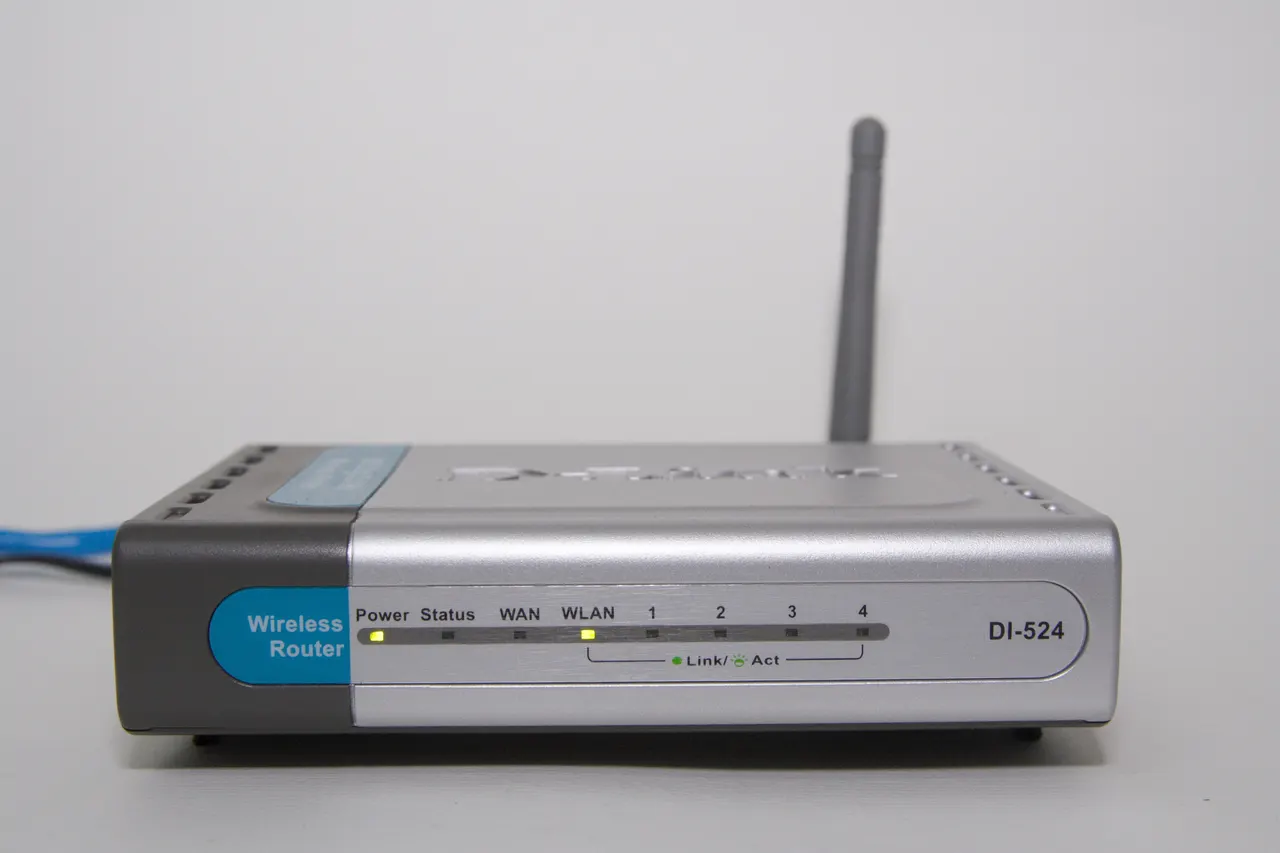
Before diving into complex router settings, the most effective first step is to force a complete restart of your network hardware. This clears the memory of both the router and the smart TV, ensuring that any temporary glitches or IP address conflicts are resolved. To do this, unplug your router and modem from the power source for at least 30 seconds. This allows the capacitors to discharge and the internal systems to clear their temporary logs. After the wait, plug the router back in first and wait for it to fully boot up. Then, power on your smart TV. Engadget notes that troubleshooting the router is the foundational step in resolving constant dropouts.
Switch to the 5GHz Frequency Band
If your router supports dual-band Wi-Fi, you should ensure your TV is connected to the 5GHz band rather than the 2.4GHz band. While 2.4GHz offers better range, it is crowded with interference from neighbors, microwaves, and Bluetooth devices. The 5GHz band offers significantly more bandwidth and is generally less congested, although it has a shorter range. You can often force the TV to connect to 5GHz by ensuring the router broadcasts separate network names (SSIDs) for each frequency. If your router automatically chooses a band, you may see random drops as the TV switches between 2.4GHz and 5GHz. Locking the connection to 5GHz provides a more consistent stream for high-definition and 4K content.

Migrate to a Wired Connection
While this may not be possible for every room layout, upgrading to a wired Ethernet connection is the only way to eliminate wireless interference entirely. If your TV is located in the same room as your router or if you can run a cable through a ceiling or wall, plugging in the TV provides a significantly more stable connection. This is particularly beneficial for high-bitrate streaming services that require consistent throughput. Even if you cannot run a physical cable to the TV, using a powerline Ethernet adapter can utilize your home’s existing electrical wiring to transmit data. However, this method can be less reliable if your home has older or inconsistent electrical wiring. A physical wire is always the gold standard for stability.
Manage Router Bandwidth and Interference
Often, the TV itself is fine, but the network is simply overwhelmed. You can manage this by accessing your router’s administrative panel, usually found at 192.168.1.1 or 192.168.0.1. Look for settings related to Quality of Service (QoS) or device prioritization. By prioritizing your smart TV in the router’s device list, you ensure it gets first access to available bandwidth when the network is under heavy load. Furthermore, if you are using a newer router, consider updating its firmware. Manufacturers frequently release updates that improve stability and fix specific bugs related to connection drops. It is also wise to check if other devices are hogging your bandwidth, such as a background computer update or a large cloud storage sync.

When to Seek Professional Help
If you have executed these steps and the issue persists, it is time to consider a hardware upgrade. As reported by CNET and Wirecutter, the landscape of 2026 router technology offers significant improvements in range and device management over older models. If your router is more than four or five years old, it may simply not be capable of handling the volume of connected devices in a modern household. In this case, investing in a newer mesh system or high-end standalone router is the most practical solution. A persistent, unplannable drop that occurs regardless of the network conditions is a sign that the router's radio hardware is degrading or failing. When to give up on software fixes and move to a hardware replacement is when you have tried every reset and configuration change described here without success.
By isolating the TV from a congested wireless environment and prioritizing its data traffic, you can restore the reliability of your streaming experience. Remember that a fast internet plan is only as effective as the local network that delivers it to your couch.
Sources: This report draws on coverage by Engadget, Gearbrain, The New York Times, CNET, Dong Knows Tech, PCMag, MakeUseOf, SpeedwayMedia.com. The wording is our own.