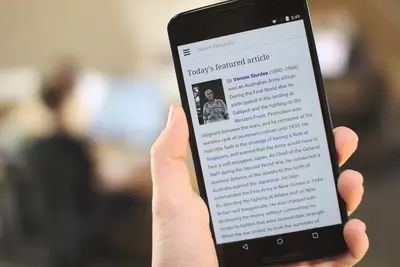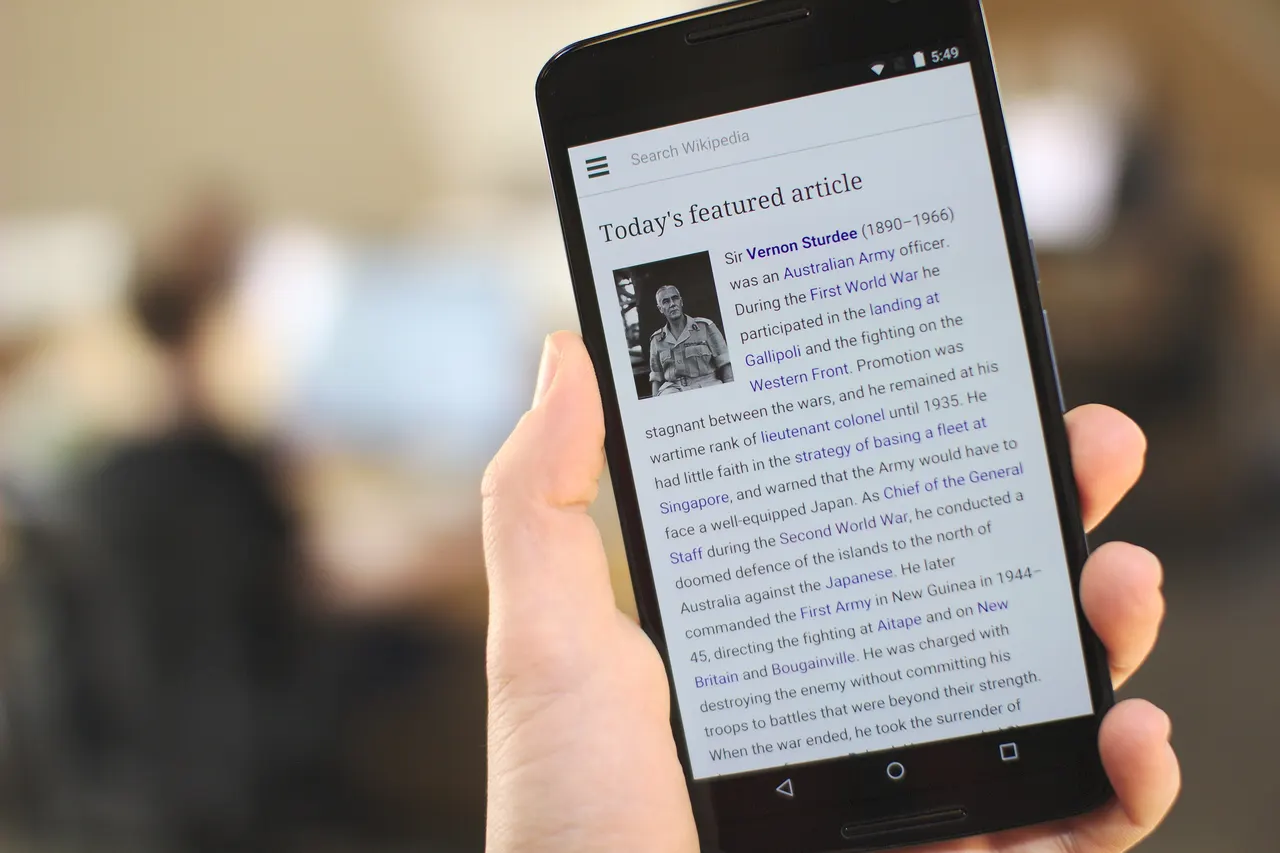
The average person checks their smartphone dozens of times a day. While biometric sensors and PIN codes are essential for security, they quickly become a point of friction when you are in the safety of your own living room. If you find yourself frustrated by typing a passcode just to check a grocery list or skip a song while at home, you are not alone; interest in these optimizations is massive, with video guides like "8 Secret Phone Settings You Should Try" garnering over 14.7 million views.
The Problem: The Security-Convenience Paradox
Modern mobile security is designed to keep your data safe in public spaces, but it doesn't distinguish between a crowded subway and your sofa. By default, your phone locks every time the screen times out, requiring a thumbprint, face scan, or PIN to regain access. This "constant-lock" state is the safest configuration, but it creates a repetitive task that many users eventually find tedious enough to disable their security entirely—which is the worst possible outcome for data safety.
The Solution: Configure 'Trusted Places' in Extend Unlock
Android includes a hidden-in-plain-sight feature previously known as Smart Lock, now rebranded as Extend Unlock. This feature allows your device to stay unlocked as long as it meets specific criteria, such as being at a specific GPS coordinate. Android Police reports that utilizing this setting can effectively end the need to type a PIN at home, saving significant time every day.
To set this up, follow these steps (note that menu paths may vary slightly depending on your device manufacturer and Android version):
- Open your phone's Settings app.
- Navigate to Security & Privacy (on some devices, this may simply be "Security" or "Lock Screen").
- Look for More Security Settings or Advanced Settings.
- Tap on Extend Unlock (you will be prompted to enter your current PIN to access this menu).
- Select Trusted places.
- Tap Add trusted place and select your home address on the map.
Once enabled, your phone will remain unlocked for up to four hours after you manually unlock it once at that location. Shattered.io notes that this is particularly effective for Galaxy phone users who want to streamline their home workflow.
Alternative: Trusted Devices for Wearable Users
If you don't want to rely on GPS—which can occasionally be imprecise or drain more battery—you can use the Trusted devices option within the same Extend Unlock menu. This is often the superior choice for users who wear a smartwatch or use Bluetooth headphones.
By adding your smartwatch as a trusted device, your phone will stay unlocked as long as the watch is connected via Bluetooth and within range. This ensures that the phone only bypasses the PIN when it is physically near you, rather than just being anywhere inside your house.
The Catch: Important Security Caveats
While Extend Unlock is a powerful convenience tool, it is not without risks. It is vital to understand the following limitations before enabling it:
- The 'Physical Access' Risk: If your phone is in a trusted place, anyone who picks it up has full access to your data. If you live with roommates or have guests over, you may want to disable this feature temporarily.
- The Four-Hour Limit: For security reasons, Android will still require a manual PIN entry every four hours, even if you are in a trusted location.
- Reboot Requirements: After a phone restarts, you must always enter your PIN manually the first time.
- Manual Locking: You can override Extend Unlock at any time by tapping the "lock" icon on your lock screen, which forces the device to require a PIN regardless of location.
When to Stick to Manual Entry
You should avoid using Extend Unlock if you work in a high-security environment or if you frequently leave your phone unattended in areas where others have access. However, for the solo dweller or the user tired of the "PIN tax" on productivity, it is a built-in solution that effectively bridges the gap between total lockdown and ease of use.
Sources: This report draws on coverage by Android Police, shattered.io, GETDroidTips. The wording is our own.